
The result server for patients
TDPatient, the TECHNIDATA web application, gives your patients a personal space to view their result reports, from home or on their smartphone.

A personal account
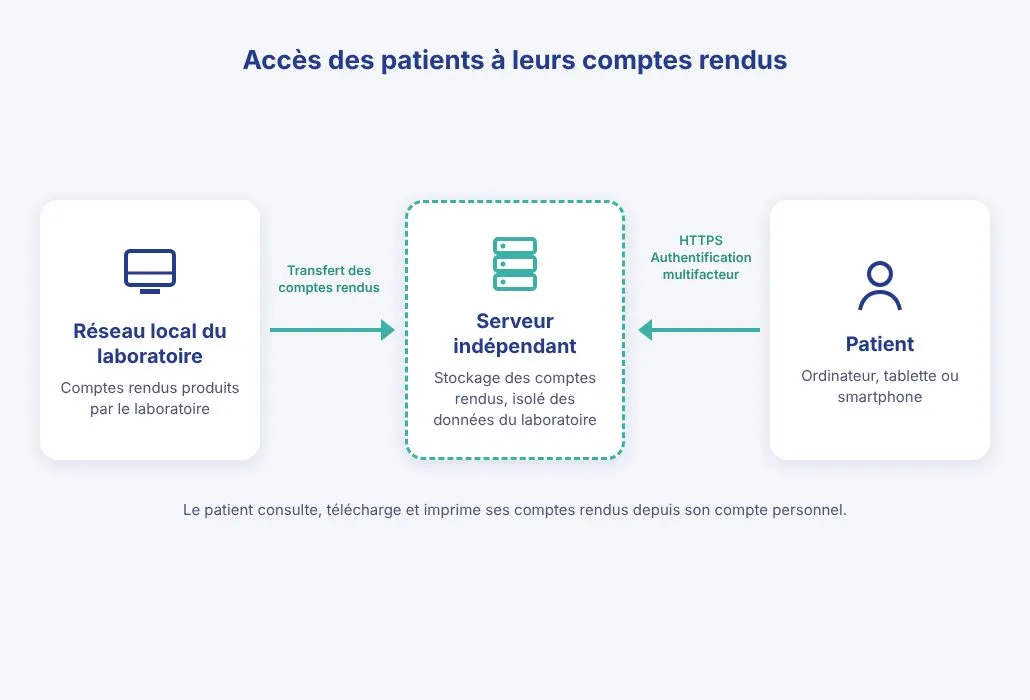
Each patient finds the reports generated by the laboratory in their account: they can view, download and print them.

Email or SMS notification
The patient is notified by email or SMS as soon as their report is available at the laboratory.

Controlled access
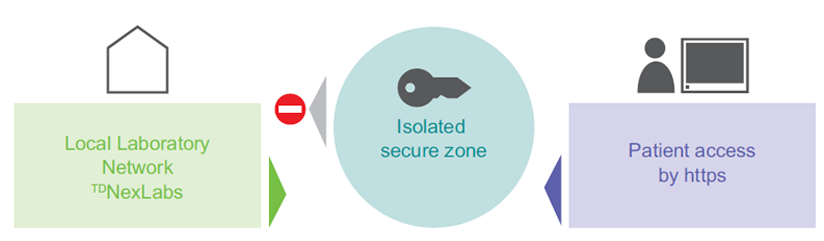
Multi-factor or strong authentication and an HTTPS-type protocol for access to the patient account.
Multi-device and customizable
Available on computer, tablet and smartphone, with an access interface that can be customized to match the laboratory's branding (color, image, logo).

Key features
Access to reports
From their personal account, the patient accesses the result reports generated by the laboratory:
- Report history
- All the reports generated by the laboratory, gathered in the patient's account
- Search, filter and sort
- Search, filter and sort the various reports
- Viewing and downloading
- Online viewing of reports
- Report download
- Printing
- Printing of reports from the account
Accordion title
Heading 1
Heading 2
Heading 3
Heading 4
Heading 5
Heading 6
Text paragraph.
Quote
Ordered list
- Item 1
- Item 2
- Item 3
Unordered list
- Item A
- Item B
- Item C
Bold text
Emphasis
Superscript
Subscript

Notification and account management
The patient is informed as soon as their results are available and manages their own account:
- Email or SMS notification
- Message sent to the patient as soon as their report is available at the laboratory
- First login
- The patient personalizes their password at first login
- Account management
- Password management by the patient
- Forgotten password management, with verification of the patient's email address and identity
Accordion title
Heading 1
Heading 2
Heading 3
Heading 4
Heading 5
Heading 6
Text paragraph.
Quote
Ordered list
- Item 1
- Item 2
- Item 3
Unordered list
- Item A
- Item B
- Item C
Bold text
Emphasis
Superscript
Subscript
Controlled access to results
Several measures govern access to result reports:
- Multi-factor or strong authentication
- Access to the patient account through multi-factor authentication or strong authentication
- Multi-factor authentication combines several factors of different types, for example a password and a one-time code generated on a smartphone
- HTTPS-type protocol
- Exchanges between the patient's browser and TDPatient via an HTTPS-type protocol
- Access control
- Control of access to results
- Temporary account lock after several failed login attempts
- Independent server
- Independent server for storing reports, isolating patient data from laboratory data
Accordion title
Heading 1
Heading 2
Heading 3
Heading 4
Heading 5
Heading 6
Text paragraph.
Quote
Ordered list
- Item 1
- Item 2
- Item 3
Unordered list
- Item A
- Item B
- Item C
Bold text
Emphasis
Superscript
Subscript

Devices and customization
TDPatient adapts to patients' habits and to the laboratory's branding:
- Computer, tablet and smartphone
- Access to reports from a web browser, on PC, tablet or smartphone
- Customizable interface
- Report access interface customizable to match the laboratory's branding: color, image, logo
- Laboratory portal or dedicated page
- Integration into the laboratory's website or creation of a dedicated page
Accordion title
Heading 1
Heading 2
Heading 3
Heading 4
Heading 5
Heading 6
Text paragraph.
Quote
Ordered list
- Item 1
- Item 2
- Item 3
Unordered list
- Item A
- Item B
- Item C
Bold text
Emphasis
Superscript
Subscript
Accelerate the digital transformation of your laboratory
They trust us
Challenges, solutions, results: discover how our clients use TECHNIDATA solutions every day.
Frequently asked questions
What is multi-factor authentication?
Multi-factor authentication combines several factors of different types: something you know, such as a password, and something you have, such as a smartphone that generates a one-time code.
TDPatient offers multi-factor authentication or strong authentication, with an access code sent by e-mail, to access the patient account.
Can the TDPatient interface be customized?
Yes. The report access interface can be customized to match the laboratory's identity: colors, image and logo. TDPatient can be integrated into the laboratory's website or offered on a dedicated page.
How do patients view their results online?
Patients log in to their personal TDPatient account from a computer, tablet or smartphone. There they find the reports generated by the laboratory, which they can search, view, download and print.
They are notified by e-mail or text message as soon as a new report is available.
How does your software protect data?
In TDPatient, access to reports is controlled: multi-factor or strong authentication, HTTPS-type protocol and an independent server for storing reports, which isolates patient data from laboratory data.